

Requirements
- DevNet (0.8.4)
- TestNet (0.8.1)
- MainNet (0.8.0)
- A running Kubernetes cluster in which you have administrator access to create and manage namespaces.
-
A development workstation with the following:
kubectl- At least v1.26.1helm- At least v3.11.1 (recommended >= v3.17.0)
- Your cluster needs a static egress IP. After acquiring that, provide it to your SV sponsor who will propose adding it to the IP allowlist to the other SVs.
- Please download the release artifacts containing the sample Helm value files, from here: Download Bundle (DevNet 0.8.4), and extract the bundle:
MIGRATION_ID, SPONSOR_SV_URL, and ONBOARDING_SECRET mean and where to find them.That page also covers how to obtain a DevNet onboarding secret automatically.In addition, for a Kubernetes deployment you need:- TRUSTED_SCAN_URL — The scan URL of an SV that you trust and that is reachable by your validator, often your SV sponsor. This should be of the form https://scan.sv-1.dev.global.canton.network.YOUR_SV_SPONSOR, e.g., for the Global Synchronizer Foundation SV it is https://scan.sv-1.dev.global.canton.network.sync.global.
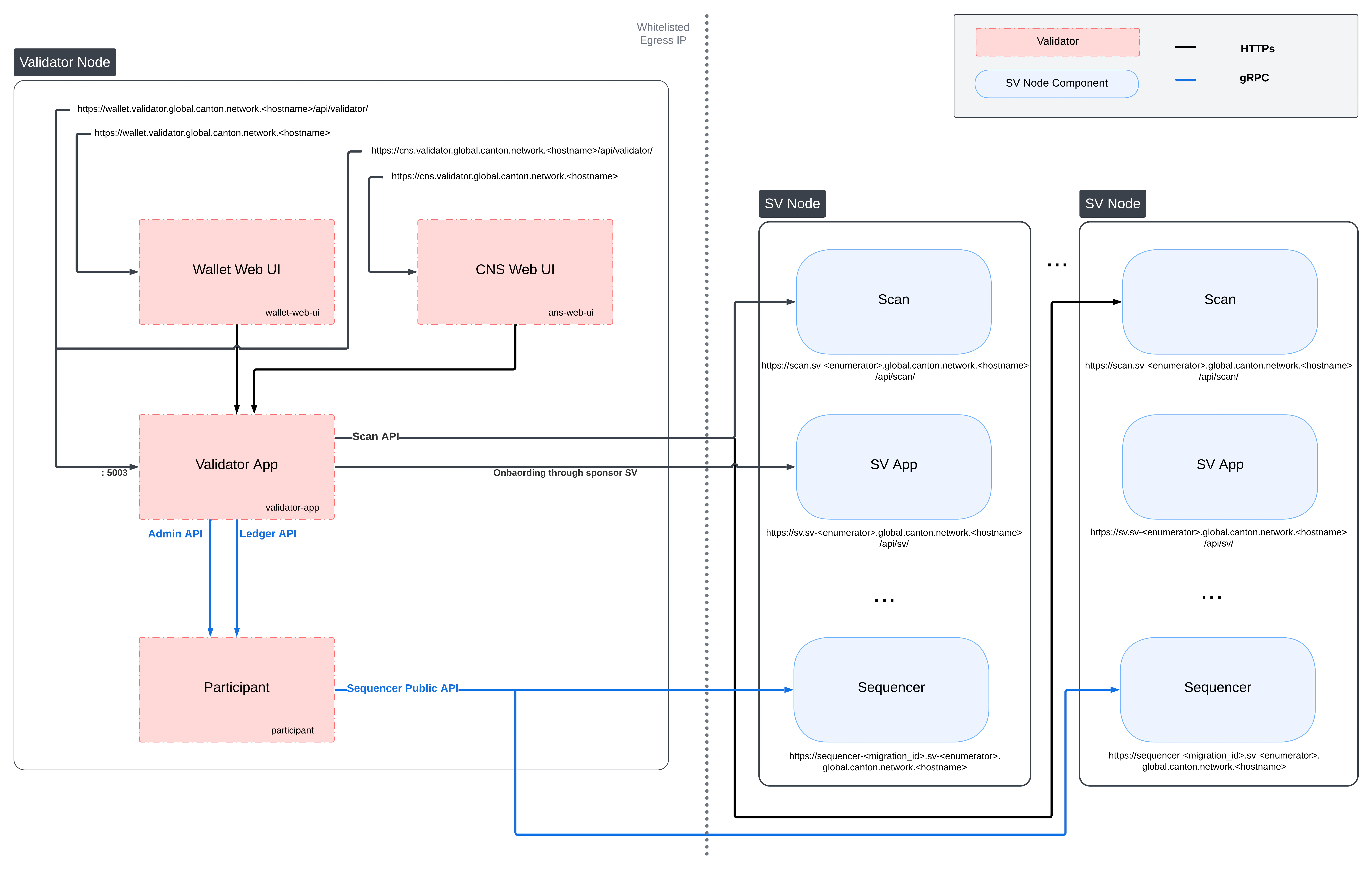
Validator Network Diagram
Preparing a Cluster for Installation
Create the application namespace within Kubernetes.HTTP Proxy configuration
If you need to use an HTTP forward proxy for egress in your environment, you need to sethttps.proxyHost and https.proxyPort in additionalJvmOptions in the validator and participant helm charts to use the HTTP proxy for outgoing connections:
your.proxy.host and your_proxy_port with the actual host and port of your HTTP proxy. Proxy authentication is currently not supported.
Bypassing the proxy for specific hosts
http.nonProxyHosts affects:- The HTTP client used by the CN apps (Validator, Scan, SV, Wallet).
- JDK-level HTTP clients in the same JVM (via the default
ProxySelector). This includes the Auth0 JWK library used by the CN apps and by the Canton participant for JWKS / OIDC discovery, as well as file downloads that usejava.net.HttpURLConnection. - gRPC egress from other components, because gRPC’s Netty transport delegates proxy decisions to the default JDK
ProxySelector.
http.nonProxyHosts to bypass the proxy for specific target hosts. Matching hosts will be contacted directly rather than through the configured proxy. This is useful for services that are reachable on the local network, such as an in-cluster Scan instance or internal monitoring endpoints.
The value is a |-separated list of patterns that follows the standard Java nonProxyHosts grammar:
- Patterns match the request host name case-insensitively.
*is a wildcard. Conventionally it is used at the start (*.internal) or end (10.*) of a pattern.- Matching is performed on the raw host string from the request URI. No DNS resolution is performed, so
localhostand127.0.0.1are treated as different names unless you list both. - An empty value (e.g.
-Dhttp.nonProxyHosts=) means “no bypass patterns”.
additionalJvmOptions for the validator helm chart that proxies external traffic but bypasses the proxy for localhost / 127.0.0.1, any host in the .internal domain, and any IPv4 address whose literal string representation starts with 10.:
Configuring PostgreSQL authentication
The PostgreSQL instance that the helm charts create, and all apps that depend on it, require the user’s password to be set through Kubernetes secrets. Currently, all apps use the Postgres usercnadmin. The password can be setup with the following command, assuming you set the environment variable POSTGRES_PASSWORD to a secure value:
Preparing for Validator Onboarding
Ensure that your validator onboarding secretONBOARDING_SECRET is set in the namespace you created earlier.
Configuring Authentication
For security, the various components that comprise your Validator node need to be able to authenticate themselves to each other, as well as be able to authenticate external UI and API users. We use JWT access tokens for authentication and expect these tokens to be issued by an (external) OpenID Connect (OIDC) provider. You must:- Set up an OIDC provider in such a way that both backends and web UI users are able to obtain JWTs in a supported form.
- Configure your backends to use that OIDC provider.
helm-validator-no-auth.
OIDC Provider Requirements
This section provides pointers for setting up an OIDC provider for use with your Validator node. Feel free to skip directly tohelm-validator-auth0 if you plan to use Auth0 for your Validator node’s authentication needs.
These docs focus on Auth0, and are being continuously tested and maintained. Other OIDC providers can be used, and are in active use by various community members, who have contributed some notes and examples in Okta and Keycloak community authored examples.
Your OIDC provider must be reachable1 at a well known (HTTPS) URL. In the following, we will refer to this URL as OIDC_AUTHORITY_URL. Both your Validator node and any users that wish to authenticate to a web UI connected to your Validator node must be able to reach the OIDC_AUTHORITY_URL. We require your OIDC provider to provide a discovery document at OIDC_AUTHORITY_URL/.well-known/openid-configuration. We furthermore require that your OIDC provider exposes a JWK Set document. In this documentation, we assume that this document is available at OIDC_AUTHORITY_URL/.well-known/jwks.json.
For machine-to-machine (Validator node component to Validator node component) authentication, your OIDC provider must support the OAuth 2.0 Client Credentials Grant flow. This means that you must be able to configure (CLIENT_ID, CLIENT_SECRET) pairs for all Validator node components that need to authenticate themselves to other components. Currently, this is the validator app backend - which needs to authenticate to the Validator node’s Canton participant. The sub field of JWTs issued through this flow must match the user ID configured as ledger-api-user in helm-validator-auth-secrets-config. In this documentation, we assume that the sub field of these JWTs is formed as CLIENT_ID@clients. If this is not true for your OIDC provider, pay extra attention when configuring ledger-api-user values below.
For user-facing authentication - allowing users to access the various web UIs hosted on your Validator node, your OIDC provider must support the OAuth 2.0 Authorization Code Grant flow and allow you to obtain client identifiers for the web UIs your Validator node will be hosting. Currently, these are the Wallet web UI and the CNS web UI. You might be required to whitelist a range of URLs on your OIDC provider, such as “Allowed Callback URLs”, “Allowed Logout URLs”, “Allowed Web Origins”, and “Allowed Origins (CORS)”. If you are using the ingress configuration of this runbook, the correct URLs to configure here are https://wallet.validator.YOUR_HOSTNAME (for the Wallet web UI) and https://cns.validator.YOUR_HOSTNAME (for the CNS web UI).
YOUR_HOSTNAME is a placeholder that you need to replace with the actual domain name or IP address of the server hosting your services.
An identifier that is unique to the user must be set via the sub field of the issued JWT. On some occasions, this identifier will be used as a user name for that user on your Validator node’s Canton participant. In helm-validator-install, you will be required to configure a user identifier as the validatorWalletUser -make sure that whatever you configure there matches the contents of the sub field of JWTs issued for that user.
All JWTs issued for use with your Validator node:
- must be signed using the RS256 signing algorithm
scope explicitly set to daml_ledger_api (when requested to do so as part of the OAuth 2.0 authorization code flow).
Summing up, your OIDC provider setup must provide you with the following configuration values:
Name column, in helm-validator-auth-secrets-config and helm-validator-install.
When first starting out, it is suggested to configure both JWT token audiences below to the same value: https://canton.network.global.
Once you can confirm that your setup is working correctly using this (simple) default, we recommend that you configure dedicated audience values that match your deployment and URLs. This is important for security to avoid tokens for your validators on one network be usable for your validators on another network. You can configure audiences of your choice for the participant ledger API and the validator backend API. We will refer to these using the following configuration values:
helm-validator-auth0 as well, to check for functionality or configuration details that your OIDC provider setup might be missing.
Configuring an Auth0 Tenant
To configure Auth0 as your validator’s OIDC provider, perform the following:- Create an Auth0 tenant for your validator
-
Create an Auth0 API that controls access to the ledger API:
- Navigate to Applications > APIs and click “Create API”. Set name to
Daml Ledger API, set identifier tohttps://canton.network.global. Alternatively, if you would like to configure your own audience, you can set the identifier here. e.g.https://ledger_api.example.com. - Under the Permissions tab in the new API, add a permission with scope
daml_ledger_api, and a description of your choice. - On the Settings tab, scroll down to “Access Settings” and enable “Allow Offline Access”, for automatic token refreshing.
- Navigate to Applications > APIs and click “Create API”. Set name to
-
(Optional) If you want to configure a different audience to your APIs, you can do so by creating new Auth0 APIs with an identifier set to the audience of your choice. For example,
- Create another API by setting name to
Validator App API, set identifier for the Validator backend app e.g.https://validator.example.com/api.
- Create another API by setting name to
-
Create an Auth0 Application for the validator backend:
- In Auth0, navigate to Applications -> Applications, and click the “Create Application” button.
- Name it
Validator app backend, choose “Machine to Machine Applications”, and click Create. - Choose the
Daml Ledger APIAPI you created in step 2 in the “Authorize Machine to Machine Application” dialog and click Authorize.
-
Create an Auth0 Application for the wallet web UI.
- In Auth0, navigate to Applications -> Applications, and click the “Create Application” button.
- Choose “Single Page Web Applications”, call it
Wallet web UI, and click Create. - Determine the URL for your validator’s wallet UI. If you’re using the ingress configuration of this runbook, that would be
https://wallet.validator.YOUR_HOSTNAME. - In the Auth0 application settings, add the URL of the validator wallet to the following:
- “Allowed Callback URLs”
- “Allowed Logout URLs”
- “Allowed Web Origins”
- “Allowed Origins (CORS)”
- Save your application settings.
-
Create an Auth0 Application for the CNS web UI. Repeat all steps described in step 5, with following modifications:
- In step b, use
CNS web UIas the name of your application. - In steps c and d, use the URL for your validator’s CNS UI. If you’re using the ingress configuration of this runbook, that would be
https://cns.validator.YOUR_HOSTNAME.
- In step b, use
helm-validator-install - for being able to log in as your Validator node’s administrator. You will be asked to obtain the user identifier for this user account. It can be found in the Auth0 interface under User Management -> Users -> your user’s name -> user_id (a field right under the user’s name at the top).
We will use the environment variables listed in the table below to refer to aspects of your Auth0 configuration:
AUTH0_TENANT_NAME is the name of your Auth0 tenant as shown at the top left of your Auth0 project. You can obtain the client ID and secret of each Auth0 app from the settings pages of that app.
Configuring Authentication on your Validator
We are now going to configure your Validator node software based on the OIDC provider configuration values you exported to environment variables at the end of eitherhelm-validator-auth-requirements or helm-validator-auth0. (Note that some authentication-related configuration steps are also included in helm-validator-install)
The validator app backend requires the following secret (omit the scope if it is not needed in your setup)
Running without Authentication
In order to run the validator without authentication, adddisableAuth: true to both splice-node/examples/sv-helm/validator-values.yaml and splice-node/examples/sv-helm/participant-values.yaml. Note that you must disable auth in both places, otherwise the validator will not be able to connect to the participant.
When running without authentication, the username of the validator administrator is administrator.
Installing the Software
reloader.stakater.com/auto: "true" annotation by default.If you do not use Reloader, the annotation is harmless and will be ignored.To remove it, set enableReloader: false in your Helm values file.Configuring the Helm Charts
- DevNet (0.8.4)
- TestNet (0.8.1)
- MainNet (0.8.0)
splice-node/examples/sv-helm/participant-values.yaml as follows:- Replace
OIDC_AUTHORITY_LEDGER_API_AUDIENCEin theauth.targetAudienceentry with audience for the ledger API. e.g.https://ledger_api.example.com. If you are not ready to use a custom audience, you can use the suggested defaulthttps://canton.network.global. - Update the
auth.jwksUrlentry to point to your auth provider’s JWK set document by replacingOIDC_AUTHORITY_URLwith your auth provider’s OIDC URL, as explained above. - If you are running on a version of Kubernetes earlier than 1.24, set
enableHealthProbestofalseto disable the gRPC liveness and readiness probes.
splice-node/examples/sv-helm/postgres-values-validator-participant.yaml as follows:- Add
db.volumeSizeanddb.volumeStorageClassto the values file adjust persistant storage size and storage class if necessary. (These values default to 20GiB andstandard-rwo)
splice-node/examples/sv-helm/standalone-participant-values.yaml as follows:- The
persistence.databaseNameincludes by default theMIGRATION_ID, for new deployments you should set this to justparticipant, ignoring theMIGRATION_ID. Existing nodes must keep their current database name.
scanClient block in your standalone-validator-values.yaml.scanClient type, replace TRUSTED_SCAN_URL with a URL of a Scan you host or trust that is reachable by your Validator. For example, the GSF scan URL, https://scan.sv-1.dev.global.canton.network.sync.global. For bft-custom and bft modes of scanClient, you can specify more than one scan seed URL by separating them with commas.- If you want to configure the audience for the Validator app backend API, replace
OIDC_AUTHORITY_VALIDATOR_AUDIENCEin theauth.audienceentry with audience for the Validator app backend API. e.g.https://validator.example.com/api. - If you want to configure the audience for the Ledger API, set the
audiencefield in thesplice-app-validator-ledger-api-authk8s secret with the audience for the Ledger API. e.g.https://ledger_api.example.com. - Replace
OPERATOR_WALLET_USER_IDwith the user ID in your IAM that you want to use to log into the wallet as the validator operator party. Note that this should be the full user id, e.g.,auth0|43b68e1e4978b000cefba352, not only the suffix43b68e1e4978b000cefba352 - Replace
YOUR_CONTACT_POINTby a slack user name or email address that can be used by node operators to contact you in case there are issues with your node. Note that this contact information will be publicly visible. If you do not want to share contact information, you can put an empty string. - Update the
auth.jwksUrlentry to point to your auth provider’s JWK set document by replacingOIDC_AUTHORITY_URLwith your auth provider’s OIDC URL, as explained above.
synchronizer config in your standalone-validator-values.yaml.splice-node/examples/sv-helm/standalone-validator-values.yaml as follows:- No longer needed since splice
0.6.8: ReplaceMIGRATION_IDwith the migration ID of the global synchronizer on the network you are connecting to. - Replace
SPONSOR_SV_URLwith the URL of the SV that provided you your secret. - Replace
YOUR_VALIDATOR_PARTY_HINTwith the desired name for your validator operator party. It must be of the format<organization>-<function>-<enumerator>. - Replace
YOUR_VALIDATOR_NODE_NAMEwith the name you want your validator node to be represented as on the network. Usually you can use the same value as for yourvalidatorPartyHint.
standalone-validator-values.yaml.Installing the Helm Charts
- DevNet (0.8.4)
- TestNet (0.8.1)
- MainNet (0.8.0)
Pod restarts may happen during bringup, particularly if all helm charts are deployed at the same time. For example, the participant cannot start until postgres is running.Configuring the Cluster Ingress
The following routes should be configured in your cluster ingress controller.https://wallet.validator.<YOUR_HOSTNAME>should be routed to servicewallet-web-uiin thevalidatornamespacehttps://wallet.validator.<YOUR_HOSTNAME>/api/validatorshould be routed to/api/validatorat port 5003 of servicevalidator-appin thevalidatornamespacehttps://cns.validator.<YOUR_HOSTNAME>should be routed to serviceans-web-uiin thevalidatornamespacehttps://cns.validator.<YOUR_HOSTNAME>/api/validatorshould be routed to/api/validatorat port 5003 of servicevalidator-appin thevalidatornamespace
Requirements
In order to install the reference charts, the following must be satisfied in your cluster:- cert-manager must be available in the cluster (See cert-manager documentation)
- istio should be installed in the cluster (See istio documentation)
Installation Instructions
- DevNet (0.8.4)
- TestNet (0.8.1)
- MainNet (0.8.0)
cluster-ingress namespace:cn-net-tls. An example of a suitable certificate definition:istio-gateway-values.yaml with the following content (Tip: on GCP you can get the cluster IP from gcloud compute addresses list):cluster-ingress namespace. Save the following to a file named gateway.yaml, and replace YOUR_HOSTNAME with the actual hostname you want to use for your validator node (and has a DNS record pointing to the cluster IP you configured above):- replacing
YOUR_HOSTNAMEinsplice-node/examples/sv-helm/validator-cluster-ingress-values.yamland - setting
nameServiceDomainin the same file to"cns"
Logging into the wallet UI
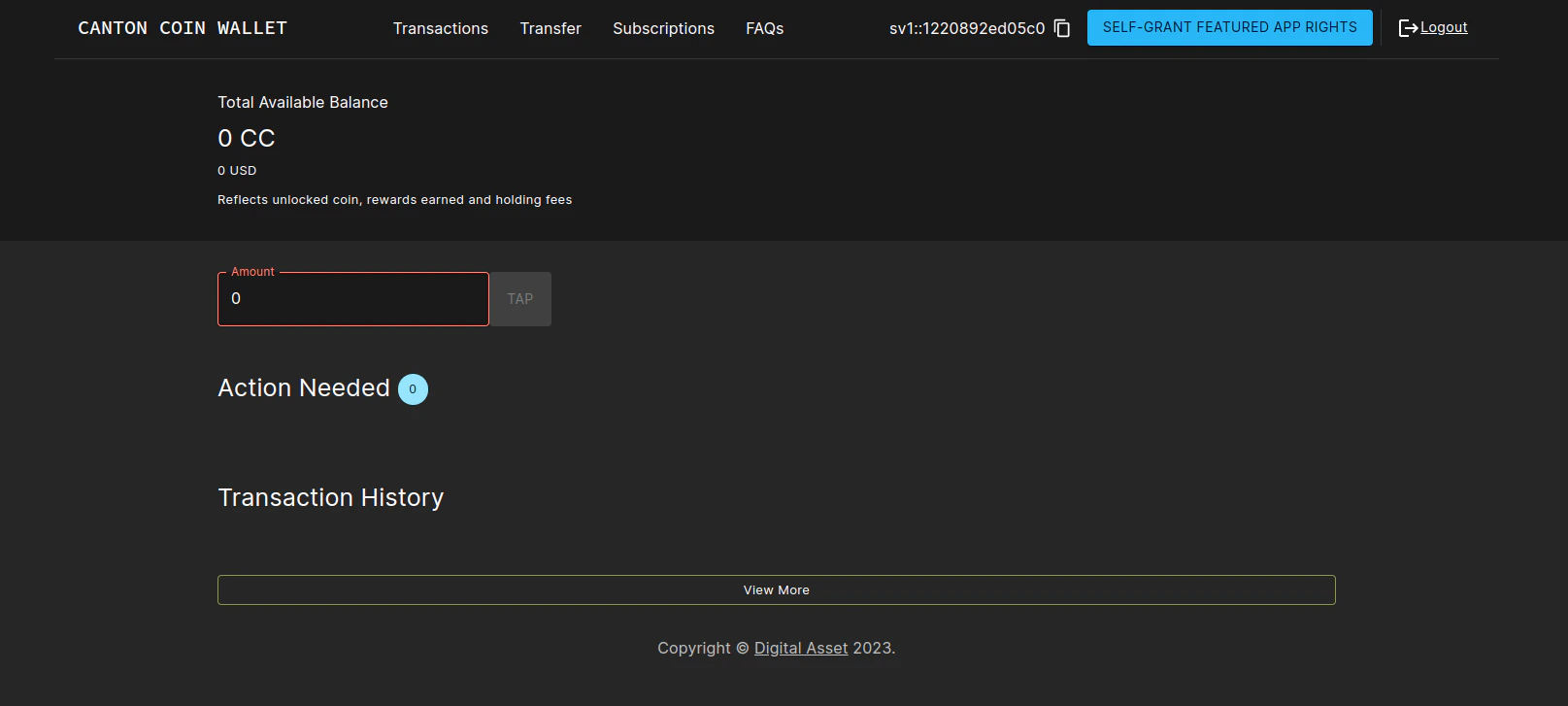
After you deploy your ingress, open your browser at https://wallet.validator.YOUR_HOSTNAME and login using the credentials for the user that you configured asvalidatorWalletUser earlier. Once logged in one should see the transactions page.
Configuring automatic traffic purchases
By default your node will be configured to automatically purchase traffic on a pay-as-you-go basis (see automatically purchase traffic). To disable or tune to your needs, edit the following section in the validator-values.yaml file:On each successful top-up, the validator app purchases a top-up amount of roughly targetThroughput * minTopupInterval bytes of traffic (specific amount can vary due to rounding-up). The minTopupInterval allows validator operators to control the upper-bound frequency at which automated top-ups happen. If the top-up amount is below the synchronizer-wide minTopupAmount (see traffic parameters), minTopupInterval is automatically stretched so that at least minTopupAmount bytes of traffic are purchased while respecting the configured targetThroughput.
The next top-up gets triggered when all of the following conditions are met:
- The available extra traffic balance drops below the configured top-up amount (i.e., below
targetThroughput * minTopupInterval). - At least
minTopupIntervalhas elapsed since the last top-up. - The validator has sufficient CC in its wallet to buy the top-up amount worth on traffic (except on DevNet, where the validator app will automatically tap enough coin to purchase traffic).
Validators receive a small amount of free traffic from the Super Validators, which suffices for submitting the top-up transaction. However, if many other transactions are submitted, you may run into a situation where you have exhausted also the free traffic, thus the validator cannot submit the top-up transaction. The free traffic grant accumulates gradually and continuously. When no transactions are submitted, it takes about twenty minutes for free traffic to accumulate to the maximum possible. If you’ve consumed your traffic balance by submitting too many transactions without purchasing traffic, pause your Validator node (validator app and participant) for twenty minutes to allow your free traffic balance to accumulate.
Configuring sweeps and auto-accepts of transfer offers
You can optionally configure the validator to automatically create transfer offers to other parties on the network whenever the balance of certain parties that it hosts exceeds a certain threshold.
Whenever the balance of <senderPartyID> exceeds maxBalanceUSD, the validator will automatically create a transfer offer to <receiverPartyId>, for an amount that leaves minBalanceUSD in the sender’s wallet. Note that you will need to know the party IDs of both the sender and receiver, which can be copied from the wallet UIs of the respective users (in the top right corner). This therefore needs to be applied to the Helm chart in a second step after the initial deployment, once the party IDs are known.
Whenever the validator receives a transfer offer from <senderPartyID> to <receiverPartyId>, it will automatically accept it. Similarly to sweeps, party IDs must be known in order to apply this configuration.
validator-values.yaml file:
validator-values.yaml file:
Logging into the CNS UI
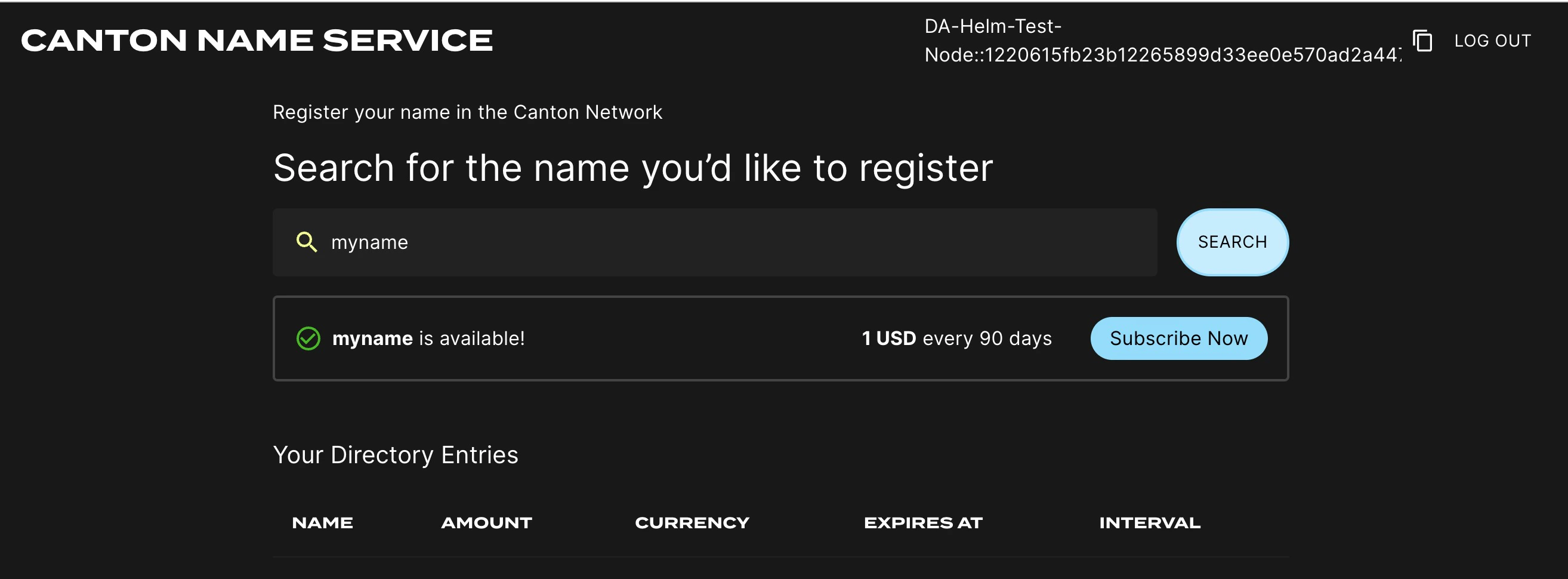
You can open your browser at https://cns.validator.YOUR_HOSTNAME and login using the credentials for the user that you configured asvalidatorWalletUser earlier. You will be able to register a name on the Canton Name Service.
Participant Pruning
By default, participants preserve all history. However, this leads to gradually growing databases and can slow down certain queries, in particular, queries for the active contract set on the ledger API. To mitigate that, it is possible to enable participant pruning which will remove all history beyond a specified retention point and only preserve the active contract set. Note that this only affects the participant stores. The CN apps (Validator, SV and Scan) are unaffected by enabling this, so e.g., the history in your wallet will never be pruned. Below you can see an example of the pruning config that you need to add tovalidator-values.yaml to retain only the history for the last 48h.
Note that if your node is down for longer than the pruning window (48 hours in the example above), your node will most probably get corrupted, as the apps race catching up with the participant’s attempts to keep pruning. It is therefore advisable to set the pruning window to a value that you are comfortable with in terms of guaranteeing uptime of your node. Setting it to 30 days is in general a reasonable choice, as the sequencers currently are also pruned after 30 days, so you will not be able to catch up with the network after a longer downtime anyway (see Disaster Recovery for disaster recovery guidelines).
Refer to the pruning guide for more details on participant pruning.
Configuring init containers
If you need to configure init containers on the participant or validator deployments, you can use the following helm values forsplice-participant or splice-validator:
Working around volume ownership issues
The containers in thesplice-validator chart run as non-root users (specifically, user:group 1001:1001) for security reasons. The pod mounts volumes for use by the containers, and these volumes need to be owned by the user that the containers run as. The Helm chart uses an fsGroup security context to ensure that the mounted volumes are owned by the correct user. In certain environments, however, this does not work as expected and the mounted volumes are owned by root. If you encounter this issue, you can work around it by creating init containers that change the ownership of the mounted volumes to the correct user.
For example, for the /domain-upgrade-dump volume (required for synchronizer upgrades), you can add the following to your validator-values.yaml file:
/participant-bootstrapping-dump (required when recovering from identities backup).
Footnotes
- The URL must be reachable from the Canton participant and validator app running in your cluster, as well as from all web browsers that should be able to interact with the wallet and CNS UIs. ↩