

Debugging and troubleshooting with lnav
Contents
Jumping In
lnav is a log file viewer and navigator that helps you view, search, filter, and analyze log files. This section gets you started quickly with lnav in CN application development using LocalNet. Screenshots and instructions are made with lnav version 0.13.1.
lnav download & documentation
Downloadlnav for your OS at the lnav download page.
You can check the location of lnav on your machine with which lnav. Display the version of lnav with lnav --version.
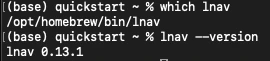
Install Canton lnav format
The Canton Network has a customlnav configuration to help you view and analyze Canton logs. The configuration is defined in JSON and lives in the open source Splice repository. You can read the schema to understand available values and the construction of logs when debugging with lnav in CN applications.
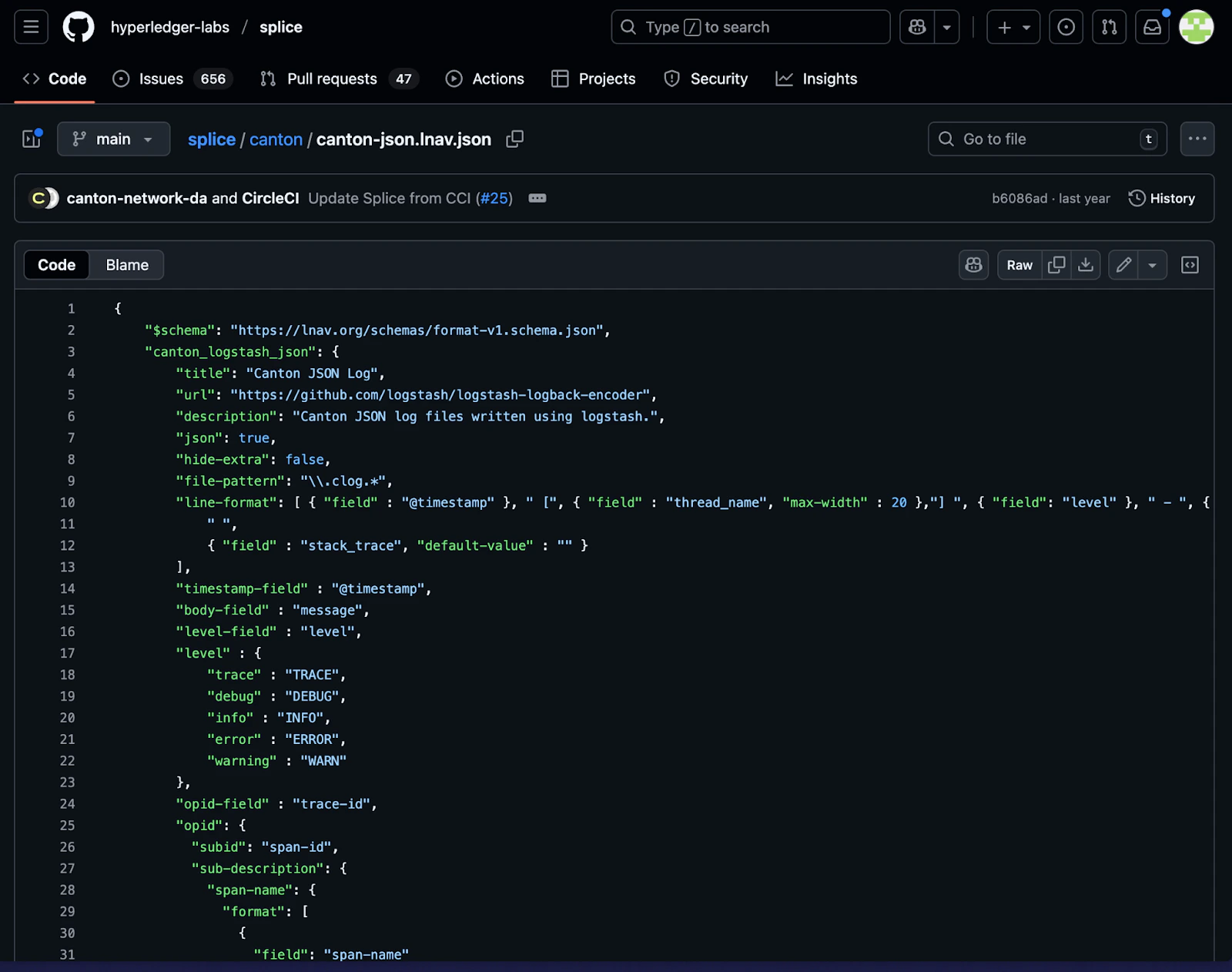
splice/canton/canton-json.lnav.json
Download the configuration and install it for lnav usage:
lnav.
Capture Quickstart logs
To capture logs for all the quickstart containers, from thequickstart/ directory, run make capture-logs. Allow the terminal running capture-logs to operate in the background. Then, in a separate terminal run make start to launch the containers.

make capture-logs in terminal 1
Find the logs
The containers create logs in thelogs/ directory while running, starting from initialization. See the available logs by running ls logs.
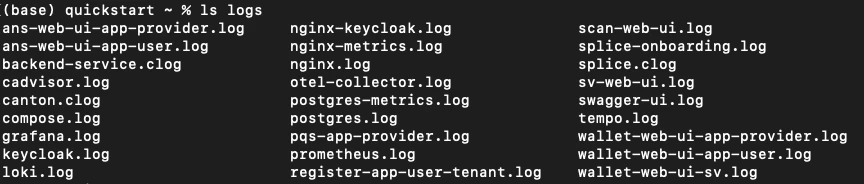
Canton logs
clog pronounced “c-log” are Canton logs that follow the custom Canton log formatting, as mentioned above. clogs are generally used for long-running services such as Canton and Splice, while the standard log files usually indicate initialization scripts and utilities.
View live clogs by running lnav logs/*.clog from the quickstart/ directory. (Exit at any time by pressing “q” or typing “:quit”)
The clogs show a live stream of logs emanating from Canton, Splice, and backend services.
Navigating events
In the terminal, create a business event to trace by runningmake create-app-install-request from the quickstart/ directory.
Return to lnav. Pause and unpause the stream as needed while working through this guide by pressing “=”.
Search for an event
Create a search for “AppInstallRequest” by typing/AppInstallRequest.

Filter an event
To focus on events of interest, make a “filter-in” search with:filter-in AppInstallRequest
Unlike search, which highlights matches within the log stream, :filter-in shows only log entries that contain the requested information.

Clear filter-in results
Return to the live stream with:reset-session. If you return to a blank log, use q to quit and reenter lnav with lnav logs/*.clog.
Generate events for analysis
Perform a complete business operation in the Quickstart application to generate traceable events for log analysis.Quick workflow summary
- Log in as
app-provideratlocalhost:3000 - Accept the install request
- Create a license
- Issue a license renewal request
- Log in as
app-userand make the payment in the Canton Wallet. - Accept and allocate payment for the renewal
- Return to the app as
app-providerand complete the renewal
Search by Trace ID
The logs include an OpenTelemetry trace identifier (trace-id) for analysis purposes. A trace ID is useful since they are recorded with logs in different containers. Trace IDs help you follow a single operation across all services. This is a key log analysis technique that you will use frequently.Find a Trace ID
Find a Trace ID by filtering with:filter-in listLicenses The Trace ID is the string of characters wrapped in the parentheses.

Filter by Trace ID
Filter to see only logs related to this specific Trace ID:
:filter-in) - When you want to focus exclusively on one operation. Search (/) - When you want context from surrounding logs.
Power Use of lnav
The “Jumping In” and “Capture Quickstart logs” sections introduced you tolnav. This section introduces you to more powerful features for monitoring your Canton Network applications during development.
Integrate lnav into your workflow:
- Development: Monitor application behavior as you build features, verify that Daml contracts and workflows execute as expected, and catch and diagnose issues early.
- Debugging: Trace the flow of operations across Canton, Splice, and backend services, use trace IDs to understand the complete lifecycle of failed operations, and filter logs to isolate specific issues without noise from unrelated events.
- Troubleshooting: Quickly locate errors and warnings, search for specific operations, contract IDs, or party identifiers, and analyze the sequence of events leading to unexpected behavior.
lnav becomes an invaluable tool for understanding system behavior, identifying bottlenecks, and resolving issues efficiently.
Further exploration of lnav clogs
The remainder of this guide is intended to increase your familiarization withlnav. Practice the following commands while in lnav.
Press “g” on the keyboard to go to the top of the logs. “Shift + g” takes you to the end of the logs and reinitiates the stream.
Pause and unpause the stream with “=”.
Use the left cursor key to view the log entry’s file origination point.
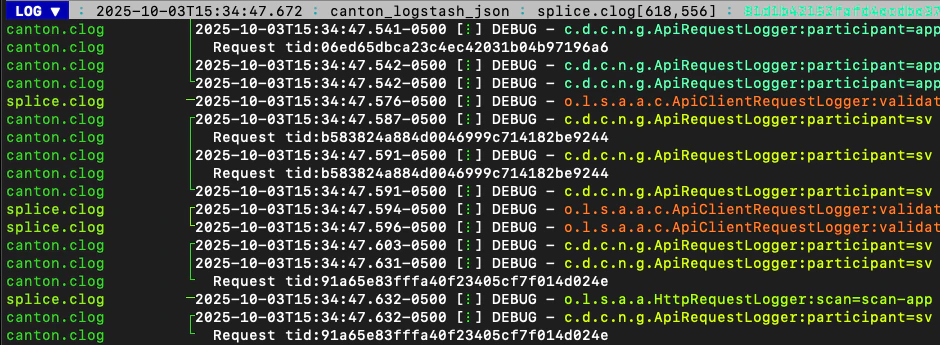

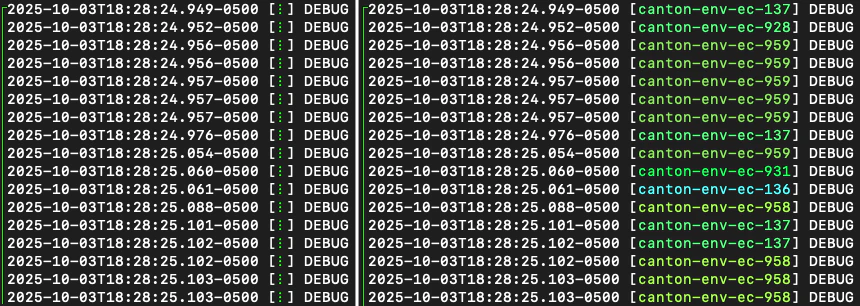
Mark and copy lines
- Use “m” to mark lines.
- Copy lines with “c” to mark and copy entries into clipboard.
- “m” and “c” allow you to easily share log entries of interest.
- “Shift + J” copies subsequent lines.
- “Shift + K” unmarks subsequent lines.
- “u” and “Shift + U” allows you to jump between marked lines
- “Shift + C” clears all marked lines.
Find errors, warnings, and trace IDs
- “e” and “Shift + E” jumps between errors
- “w” and “Shift + W” jumps between warning messages
- “o” and “Shift + O” jumps between traceIds (opId)
Time
“Shift + T” toggles time marks where the selected item is the center of time. The smaller the digit the closer to the event the log is and the larger the number, the further from the event. Time is demarcated in seconds.
Command mode
As a Canton Network developer, command mode gives you precise control over log navigation, filtering, and analysis-essential functions for isolating trace IDs, filtering by service component, or narrowing down time windows when debugging distributed Canton operations. This section highlights a few of the most commonly used commands. Enter command mode with the colon key, “:” then type your desired command. To scroll through command history, press “:” followed by the up arrow. A small selection of available commands are showcased in the Appendix section below. Read thelnav documentation for a full list of available commands.
Help
For detailed documentation of any command use:help or “?”. Exit help with “q” or “?”
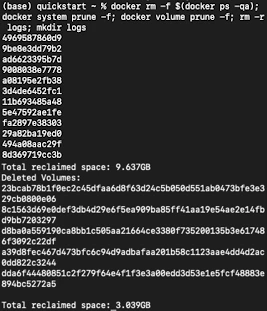
Prune logs
From time to time you may desire to prune logs. You can prune all logs and start with a fresh logs subdirectory with:make start to resume operations after running this command.
Troubleshooting
Iflnav crashes it may also force quit the capture logs script and delete all of the files in the logs/ directory.
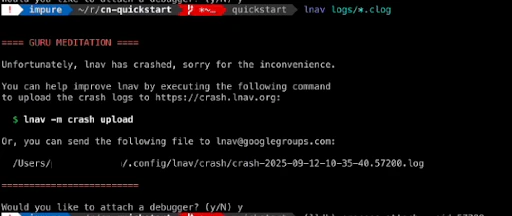
logs/ and its *.clogs files, you need to make stop && make clean-all and then make start from the quickstart/ directory.
Appendix
Correlation mechanisms
Canton Network uses several correlation and filtering mechanisms that can be used to search, sort, and analyze log entries:level- Log level (TRACE, DEBUG, INFO, WARN, ERROR)logger_name- Component identifiermessage- Log message contenttrace-id: OpenTelemetry trace identifierspan-id: OpenTelemetry span identifierspan-parent-id: Links spans in trace hierarchyspan-name: Operation name@timestamp- Timestamp
- Timestamp:
2025-10-09T22:03:41.702-0500 - Collapsed metadata including the thread_name:
[⋮] - Log level:
DEBUG - Separator:
- - More collapsed content:
⋮ - No active trace (not part of distributed tracking):
(---)
- Trace ID:
846ff12a35f6e8b61171039527934709 - Span name:
SvOffboardingSequencerTrigger - Span ID:
6aaa9f37e9ae78c4
- Trace ID:
2a2f0baca0ce4452d713a30d9a5bcb7d - Log message:
Request com.digitalasset.canton.topology.admin.v30.TopologyManagerReadService/ListSequencerSynchronizerState by /172.18.0.22:43954: received a message - The three hyphens
---indicates that there is no span-name (it would be after the first of the three hyphens) and that there is no span-id (which would be after the final two hyphens). - See the previous example to review how the trace-id, span-name, and span-id are formatted.
Advanced filtering
Common Field Reference
The following structured fields are present in Canton Network logs and can be used inlnav filter expressions to search, sort, and analyze log entries.
Filter by Severity
Filter by Component
Filter by Trace
Filter by Time Range
Filter by Content
Hide lines
You can hide lines that match specific patterns using the following commands::hide-lines-beforehides lines that come before the given date.:hide-lines-afterhides lines that come after the given date.:hide-fieldshides certain fields in each line.
logger_name, thread_name, ipaddress, @timestamp, stack_trace, span-parent-id, trace-id, @version, and level. You can hide more than one field type at a time.
For example, if you wanted to hide thread_name and level you’d use:
:hide-fields thread_name level
Hide lines before
Hide lines after
Show lines
:show-lines-beforeshows lines that were previously hidden before a specific time, duration, or line number.:show-lines-aftershows lines that were previously hidden after a specific time, duration, or line number.
Gathering logs contents into a directory
Use one of the following commands fromquickstart/, based on your operating system, to gather the logs directory content into a single folder:
tar -czf my-cn-logs.tar.gz logs/
zip -r my-cn-logs.zip logs/
Common lnav shortcuts
lnav shortcuts can be found on lnav’s hotkey reference page.
Navigation
- j/k or ↓/↑ - Move down/up one line
- J/K - Select/deselect subsequent entries
- Space/b - Page down/up
- g/G - Go to top/bottom of file
- n/N - Next/previous search result
Search & Filter
- / - Search forward
- ? - Help menu
- f - Set filter expression
- F - Clear filters
- t - Display only errors/warnings
- T - Clear error filter
Time Navigation
- 7/8 - Skip to top of hour
- Shift+T - Toggle time view
Display
- v - Switch between log views
- Tab - Cycle through files and text filters menus
- i - Show/hide informational messages
- p - Toggle pretty-print mode
Bookmarks
- m - Set bookmark
- u/U - Next/previous bookmark
Other
- q - Quit
- ? - Help (shows all shortcuts)