> ## Documentation Index
> Fetch the complete documentation index at: https://docs.canton.network/llms.txt
> Use this file to discover all available pages before exploring further.
# Prerequisites and Installation
> Set up your development environment and install the Canton Network QuickStart
# Canton Network quickstart installation
## Introduction
The Quickstart application helps you and your team become familiar with CN application development by providing **essential** scaffolding. The Quickstart application provides a launchpad and is intended to be extended to meet your business needs. When you are familiar with the Quickstart, review the technology choices and application design to determine what changes are needed. Technology and design decisions are ultimately up to you.
## Overview
This guide walks through the installation and `LocalNet` deployment of the CN Quickstart. We have provided a [fast path installation](#fast-path-installation) and [step-by-step instructions](#step-by-step-instructions), based on level of experience, for your convenience. Please contact your representative at Canton Network if you find errors.
### Roadmap
* After installation, [explore the demo](/appdev/quickstart/running-the-demo) to complete a business operation in the example application.
* For an overview of how the Quickstart project is structured, read the [project structure guide](/appdev/quickstart/project-structure).
* Learn about debugging using lnav in the [Debugging and troubleshooting with lnav](/appdev/quickstart/lnav).
* Additional debugging information is in the section in the observability and troubleshooting section of the [cn-quickstart repository](https://github.com/digital-asset/cn-quickstart).
## Prerequisites
Access to the [CN-Quickstart GitHub repository](https://github.com/digital-asset/cn-quickstart) is public.
The CN Quickstart is a Dockerized application and requires [Docker Desktop](https://www.docker.com/products/docker-desktop/). We recommend allocating 8 GB of memory to Docker Desktop. Allocate additional resources if you witness unhealthy containers, if possible. Decline Observability if your machine does not have sufficient memory.
Other requirements include:
* [Curl](https://curl.se/download.html)
* [Direnv](https://direnv.net/docs/installation.html)
* [Nix](https://nixos.org/download/)
* Windows users must install and use [WSL 2](https://learn.microsoft.com/en-us/windows/wsl/install) with administrator privileges.
### Nix download support
Check for Nix on your machine:
```bash theme={"theme":{"light":"github-light","dark":"github-dark"}}
nix --version
```
If the command returns something like `Nix (Nix) 2.25.2`, you're done.
Recommended installation for MacOS:
```bash theme={"theme":{"light":"github-light","dark":"github-dark"}}
sh <(curl -L https://nixos.org/nix/install)
```
Recommended installation for Linux (Windows users should run this and all following commands in WSL 2):
```bash theme={"theme":{"light":"github-light","dark":"github-dark"}}
sh <(curl -L https://nixos.org/nix/install) --daemon
```
## Fast path installation
If you are familiar with the prerequisites, use these abbreviated installation instructions. More detailed instructions are provided below.
1. [Clone from GitHub](#clone-from-github) and cd into the `cn-quickstart` repository: `git clone https://github.com/digital-asset/cn-quickstart.git`
2. Verify that the [Docker Desktop](#docker) app is running on your computer: `docker info`
3. Login to Docker repositories via the terminal: `docker login`
4. **cd** into the `quickstart` subdirectory: `cd quickstart`
5. [Install the Daml SDK](#install-daml-sdk) from the quickstart subdirectory: `make install-daml-sdk`
6. [Configure the local development](#deploy-a-validator-on-localnet) environment: `make setup`
7. When prompted, enable OAuth2, disable Observability, disable TEST MODE, and leave the party hint blank to use the default value.
8. Build the application from the `quickstart` subdirectory: `make build`
9. In a new terminal window, initiate log collection from the `quickstart` subdirectory: `make capture-logs`
10. Return to the previous terminal window to start the application and Canton services: `make start`
11. Optional - In a separate shell, from the `quickstart` subdirectory, run the [Canton Console](#connecting-to-the-local-canton-nodes): `make canton-console`
12. Optional - In a fourth shell, from the `quickstart` subdirectory, begin the Daml Shell: `make shell`
13. When complete, [close the application](#closing-the-application) and other services with: `make stop && make clean-all`
14. If applicable, close Canton Console with `exit` and close Daml Shell with `quit`.
## Step-by-step instructions
### Clone from GitHub
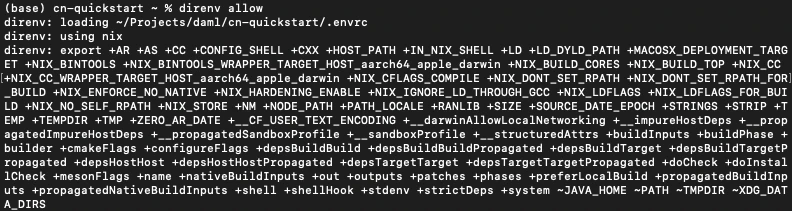
Clone and **cd** into the `cn-quickstart` repository into your local machine.
git clone [https://github.com/digital-asset/cn-quickstart.git](https://github.com/digital-asset/cn-quickstart.git)
cd cn-quickstart
direnv allow
 ### Docker
Verify that the Docker Desktop application is running on your computer.
Login to Docker repositories via the terminal.
docker login
The last command requires a [Docker Hub](https://app.docker.com/) username and password or *Personal Access Token (PAT)*.
Commands should return ‘Login Succeeded’.
### Install Daml SDK
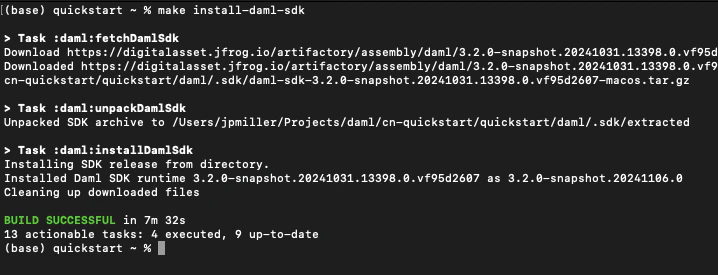
**cd** into the `quickstart` subdirectory and install the Daml SDK from the quickstart subdirectory.
cd quickstart
make install-daml-sdk
The `Makefile` providing project choreography is in the `quickstart/` directory. `make` only operates within `quickstart/`.
If you see errors related to `make`, double check your present working directory.
The Daml SDK is large and can take several minutes to complete.
### Docker
Verify that the Docker Desktop application is running on your computer.
Login to Docker repositories via the terminal.
docker login
The last command requires a [Docker Hub](https://app.docker.com/) username and password or *Personal Access Token (PAT)*.
Commands should return ‘Login Succeeded’.
### Install Daml SDK
**cd** into the `quickstart` subdirectory and install the Daml SDK from the quickstart subdirectory.
cd quickstart
make install-daml-sdk
The `Makefile` providing project choreography is in the `quickstart/` directory. `make` only operates within `quickstart/`.
If you see errors related to `make`, double check your present working directory.
The Daml SDK is large and can take several minutes to complete.
 ### Deploy a validator on LocalNet
Configure the local development environment by running `make setup`.
Disable `Observability`. Enable OAuth2. Leave the party hint blank to use the default and disable `TEST MODE`.
The party hint is used as a party node's alias of their identification hash. The Party Hint is not part of the user's identity. It is a convenience feature. It is possible to have multiple party nodes with the same hint.
```text theme={"theme":{"light":"github-light","dark":"github-dark"}}
% make setup
Starting local environment setup tool...
./gradlew configureProfiles --no-daemon --console=plain --quiet
Enable Observability? (Y/n): n
OBSERVABILITY_ENABLED set to 'false'.
Enable OAUTH2? (Y/n): y
AUTH_MODE set to 'oauth2'.
Specify a party hint (this will identify the participant in the
network) [quickstart-USERNAME-1]:
PARTY_HINT set to 'quickstart-USERNAME-1'.
Enable TEST_MODE? (Y/n): n
TEST_MODE set to 'off'.
.env.local updated successfully.
```
You can change these choices any time by running `make setup` again.
OAuth2 and Observability may be unstable if your machine has less than 8 GB of memory to allocate to Docker Desktop.
Build the application.
make build
### Deploy a validator on LocalNet
Configure the local development environment by running `make setup`.
Disable `Observability`. Enable OAuth2. Leave the party hint blank to use the default and disable `TEST MODE`.
The party hint is used as a party node's alias of their identification hash. The Party Hint is not part of the user's identity. It is a convenience feature. It is possible to have multiple party nodes with the same hint.
```text theme={"theme":{"light":"github-light","dark":"github-dark"}}
% make setup
Starting local environment setup tool...
./gradlew configureProfiles --no-daemon --console=plain --quiet
Enable Observability? (Y/n): n
OBSERVABILITY_ENABLED set to 'false'.
Enable OAUTH2? (Y/n): y
AUTH_MODE set to 'oauth2'.
Specify a party hint (this will identify the participant in the
network) [quickstart-USERNAME-1]:
PARTY_HINT set to 'quickstart-USERNAME-1'.
Enable TEST_MODE? (Y/n): n
TEST_MODE set to 'off'.
.env.local updated successfully.
```
You can change these choices any time by running `make setup` again.
OAuth2 and Observability may be unstable if your machine has less than 8 GB of memory to allocate to Docker Desktop.
Build the application.
make build
 In a new terminal window, initiate log collection from the `quickstart` subdirectory.
make capture-logs
Once complete, return to the previous terminal to start the application and Canton services.
make start
### Connecting to the Local Canton Nodes
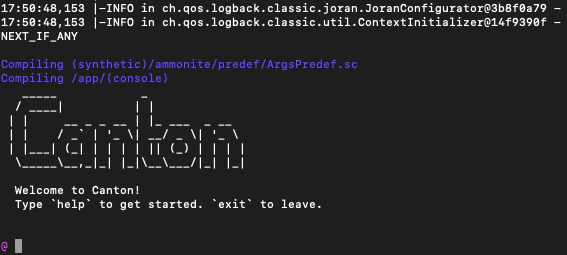
In a separate shell, from the `quickstart` subdirectory, run the Canton Console.
make canton-console
In a new terminal window, initiate log collection from the `quickstart` subdirectory.
make capture-logs
Once complete, return to the previous terminal to start the application and Canton services.
make start
### Connecting to the Local Canton Nodes
In a separate shell, from the `quickstart` subdirectory, run the Canton Console.
make canton-console
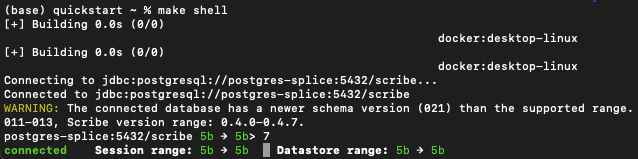
 In a fourth shell, from the quickstart subdirectory, begin the Daml Shell.
make shell
In a fourth shell, from the quickstart subdirectory, begin the Daml Shell.
make shell
 ### Closing the application
*⚠️ (If you plan on immediately using the CN Quickstart then delay execution of this section)*
#### Close Canton console
When complete, open the Canton console terminal. Run `exit` to stop and remove the console container.
#### Close Daml shell
In the Daml shell terminal, execute `quit` to stop the shell container.
#### Close the CN Quickstart
Finally, close the application and observability services with:
make stop && make clean-all
It is wise to run make `clean-all` during development and at the end of each session to avoid conflict errors on subsequent application builds.
## Next steps
You have successfully installed the CN Quickstart.
The next section, “Exploring The Demo,” provides a demonstration of the example application.
### Connecting your application to The Canton Network
The `LocalNet` deployment connects to a local validator which is in turn connected to a local super-validator (synchronizer). Staging and final production deployments require connecting to a validator that is in turn connected to the public Canton Network.
The Canton Network provides three synchronizer pools. The production network is `MainNet`; the production staging network is `TestNet`. As a developer you will mostly be connecting to the development staging network `DevNet`.
Access to [a SV Node](/global-synchronizer/deployment/onboarding-process) that is whitelisted on the CN is required to connect to DevNet. The CF publishes a [list of SV nodes](https://sync.global/sv-network/) who have the ability to sponsor a Validator node. To access `DevNet`, contact your sponsoring SV agent for VPN connection information.
## Resources
* [Curl](https://curl.se/download.html)
* [Direnv](https://direnv.net/docs/installation.html)
* [Docker Desktop](https://www.docker.com/products/docker-desktop/)
* [Docker Hub](https://app.docker.com/)
* [CF list of SV Nodes](https://sync.global/sv-network/)
* [Digital Asset Docker](https://console.cloud.google.com/artifacts/docker/da-images/europe/public)
* [Nix](https://nixos.org/download/)
* [Quickstart GitHub repository](https://github.com/digital-asset/cn-quickstart)
* [Validator onboarding documentation](/global-synchronizer/deployment/onboarding-process)
* [WSL 2](https://learn.microsoft.com/en-us/windows/wsl/install)
### Closing the application
*⚠️ (If you plan on immediately using the CN Quickstart then delay execution of this section)*
#### Close Canton console
When complete, open the Canton console terminal. Run `exit` to stop and remove the console container.
#### Close Daml shell
In the Daml shell terminal, execute `quit` to stop the shell container.
#### Close the CN Quickstart
Finally, close the application and observability services with:
make stop && make clean-all
It is wise to run make `clean-all` during development and at the end of each session to avoid conflict errors on subsequent application builds.
## Next steps
You have successfully installed the CN Quickstart.
The next section, “Exploring The Demo,” provides a demonstration of the example application.
### Connecting your application to The Canton Network
The `LocalNet` deployment connects to a local validator which is in turn connected to a local super-validator (synchronizer). Staging and final production deployments require connecting to a validator that is in turn connected to the public Canton Network.
The Canton Network provides three synchronizer pools. The production network is `MainNet`; the production staging network is `TestNet`. As a developer you will mostly be connecting to the development staging network `DevNet`.
Access to [a SV Node](/global-synchronizer/deployment/onboarding-process) that is whitelisted on the CN is required to connect to DevNet. The CF publishes a [list of SV nodes](https://sync.global/sv-network/) who have the ability to sponsor a Validator node. To access `DevNet`, contact your sponsoring SV agent for VPN connection information.
## Resources
* [Curl](https://curl.se/download.html)
* [Direnv](https://direnv.net/docs/installation.html)
* [Docker Desktop](https://www.docker.com/products/docker-desktop/)
* [Docker Hub](https://app.docker.com/)
* [CF list of SV Nodes](https://sync.global/sv-network/)
* [Digital Asset Docker](https://console.cloud.google.com/artifacts/docker/da-images/europe/public)
* [Nix](https://nixos.org/download/)
* [Quickstart GitHub repository](https://github.com/digital-asset/cn-quickstart)
* [Validator onboarding documentation](/global-synchronizer/deployment/onboarding-process)
* [WSL 2](https://learn.microsoft.com/en-us/windows/wsl/install)